

Updated: September 2026
Pairing Your Smartphone with Your Toyota Vehicle
Navigating the busy streets of Palatine, Arlington Heights, and the greater Chicagoland area requires your full, undivided attention. With strict Illinois hands-free driving laws, having a reliable Bluetooth connection in your vehicle isn't just a luxury - it's a legal requirement and a critical safety measure. But how any given automotive company goes about integrating this technology will be slightly different. Over the years, Toyota has continuously updated its multimedia systems to provide faster, more intuitive connectivity.
As a result, the process for actually connecting your device to your vehicle can require a completely different set of steps depending on whether you're driving a brand-new model off our Rand Road lot or a reliable older Toyota. But don't worry, the team here at Arlington Toyota is here to walk you through it.
Here's how to connect to Bluetooth in your Toyota, no matter what generation you drive.
Browse Our New Toyota Inventory in Palatine
Which Multimedia System Does Your Toyota Have?
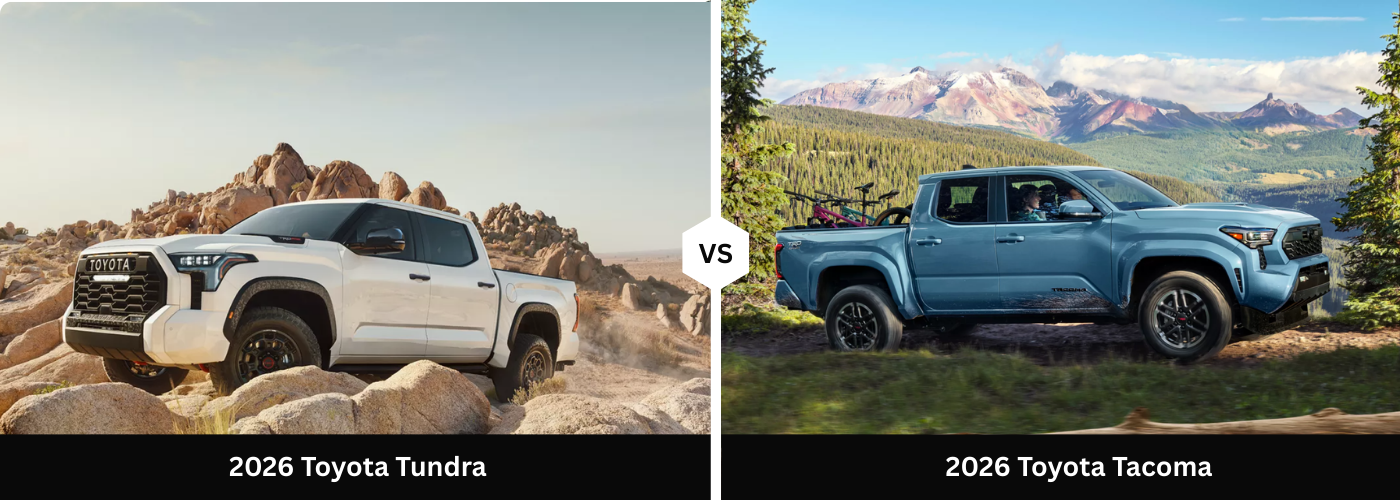
Before we dive into the steps, it helps to know which system your vehicle uses. If you drive a newer Toyota (most models from 2022 to 2026, like the latest Tundra, Tacoma, or RAV4), you likely have the new Toyota Audio Multimedia System. This modern interface features a sleek, high-resolution screen and standard wireless Apple CarPlay® and Android Auto™.
If you drive a slightly older model (generally 2021 and older), your vehicle is likely equipped with the Toyota Entune™ System. We've provided detailed instructions for both systems below so you can get connected and back out on Route 53 in no time.
Connecting to the New Toyota Audio Multimedia System (Newer Models)
If you're driving one of our newer models around Cook County, the Bluetooth pairing process is incredibly fast and intuitive. Best of all, it allows you to utilize your smartphone's navigation and music apps completely wire-free.
For Both Apple and Android Devices:
On Your Smartphone:
- Open your "Settings" app.
- Select "Bluetooth" and ensure that it is toggled ON.
- Keep this menu open on your screen so your phone remains discoverable.
On Your Toyota Touchscreen:
- Select the Settings (Gear Icon) on the left side of the main display.
- Select "Bluetooth & Devices" from the menu.
- Tap "Search for Devices" or "Add Another Device".
- Your Toyota will begin scanning. When your smartphone's name appears on the screen, tap it.
- A PIN will appear on both your phone screen and the Toyota display. Verify that the numbers match.
- Tap "Pair" on your phone.
- Important Step: The screen will immediately ask if you want to enable Apple CarPlay or Android Auto. Accept this prompt! It will allow you to seamlessly use Google Maps, Apple Music, Spotify, and read your text messages aloud without ever touching your phone.
Connecting Your Smartphone to Toyota Entune™ Bluetooth (Older Models)
Once you know what to do, connecting your device via Bluetooth on our reliable older models is pretty straightforward. Choose either Android or iPhone below and follow those directions. Remember that for older models, you may need to create a Toyota Entune™ account to utilize certain phone apps natively in your Toyota vehicle.
Android Directions
On Your Android:
- Select "Settings"
- Turn on "Bluetooth"
- Press "Scan for devices"
On Your Toyota Touchscreen:
- Push the physical "SETUP" button on the bezel.
- Select "Bluetooth" on the screen.
- Pick "Add New Device"
- Press "Make this system discoverable"
Select "Car Multimedia" (or your specific vehicle model name) on your Android device. Accept the pairing request on your phone and hit "Accept" on your Toyota touchscreen. Your phone and Toyota are now paired!
iPhone Directions
On Your iPhone:
- Select "Settings"
- Turn on "Bluetooth"
On Your Toyota Touchscreen:
- Push the physical "SETUP" button on the bezel.
- Select "Bluetooth" on the screen.
- Pick "Add New Device"
- Press "Make this system discoverable"
Hit "Car Multimedia" on your iPhone's Bluetooth list, and then select "Pair." Back on your Toyota touchscreen, press "Accept." Your iPhone and Toyota have successfully paired.
Entune™ App Suite and Hands-Free Bluetooth: To utilize third-party apps on your phone with your older Toyota's screen, you'll need a USB cable. The Bluetooth set up earlier was specifically for hands-free Entune™ operation. It enables voice command functionality for your Entune™, that way you can keep your eyes and focus where it's needed most: on the road.
Troubleshooting Common Bluetooth Connection Issues
Sometimes technology can be stubborn. If you are having trouble getting your phone to pair with your Toyota before your commute down the Jane Addams Tollway, here are a few local mechanic-approved troubleshooting tips:
- Clear Out Old Devices: If you bought a pre-owned Toyota, the previous owner's Bluetooth profile might still be saved. Go to your Toyota's Bluetooth settings and delete any unrecognized phones to free up system memory.
- Restart Both Devices: It sounds cliché, but turning your vehicle off and back on, alongside restarting your smartphone, fixes the vast majority of pairing glitches.
- Check for Software Updates: Ensure your iPhone or Android operating system is completely up to date. Outdated phone software can sometimes struggle to communicate with newer automotive systems.
- Forget the Connection and Retry: If your phone is connected but the audio keeps dropping, go to your phone's Bluetooth menu, select the Toyota connection, and hit "Forget This Device." Then, repeat the pairing steps from scratch.
Why Hands-Free Driving Matters in Illinois
As your trusted local Palatine dealership, we care about the safety of our community. Illinois law strictly prohibits the use of hand-held cell phones, texting, or using other electronic communications while operating a motor vehicle. Hands-free devices, like a built-in Bluetooth system, are legally required for drivers age 19 and older. By taking five minutes to pair your smartphone to your Toyota's audio system, you aren't just making your drive more convenient - you are protecting yourself from hefty fines and keeping our local Chicagoland roads safer for everyone.
Need Help or Looking for Accessories for Your Toyota?
If you're still having trouble pairing your phone, don't hesitate to stop by Arlington Toyota right here in Palatine, IL. One of our friendly product specialists would be more than happy to jump in the passenger seat and walk you through the setup process in person.
While you're thinking about your vehicle, check out our Parts and Accessories page, where we have everything you could need for your car, from all-weather floor mats for harsh Illinois winters to replacement charging cables. While you're there, take a peek at our service specials, so you know you're getting the best deal on your next oil change, tire rotation, or battery test.